
Design Portal Help

Introduction

The Design portal makes it easy to manage and track your house design applications.

Both the builder and the owner will get email updates, can check on the progress of an application and provide information to progress your application.
Making an application
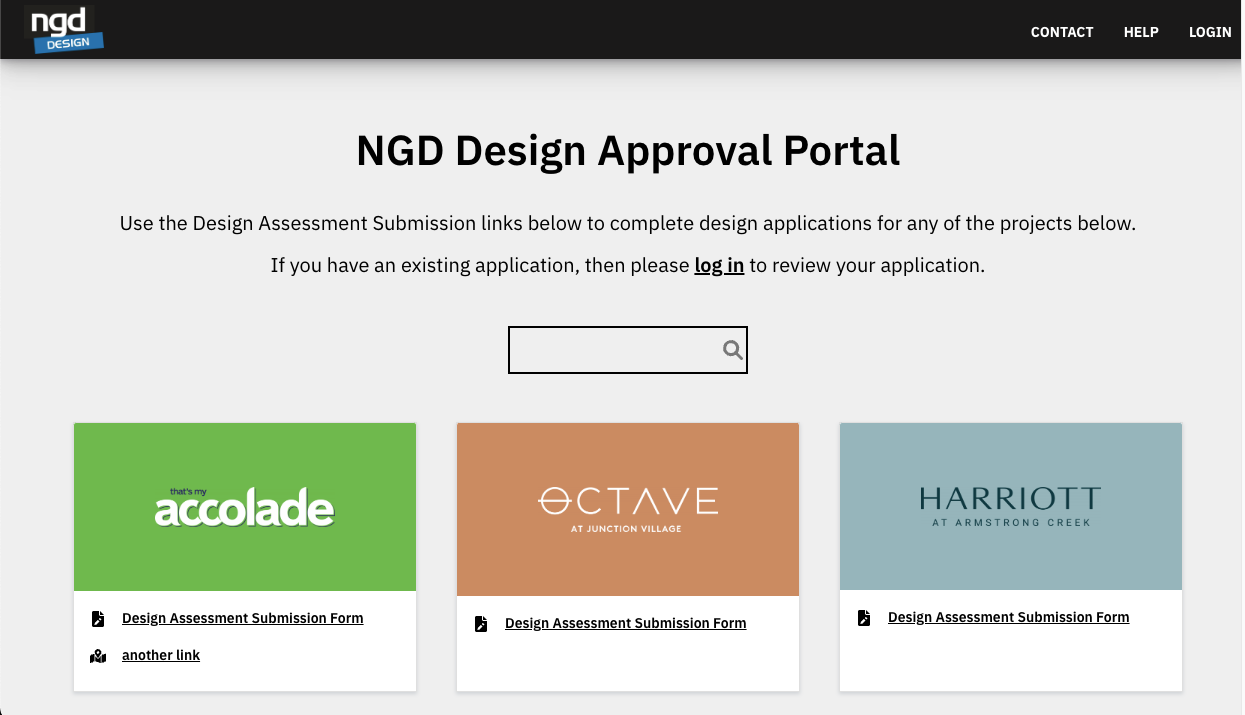
  • From the home page, select the development you are applying to.
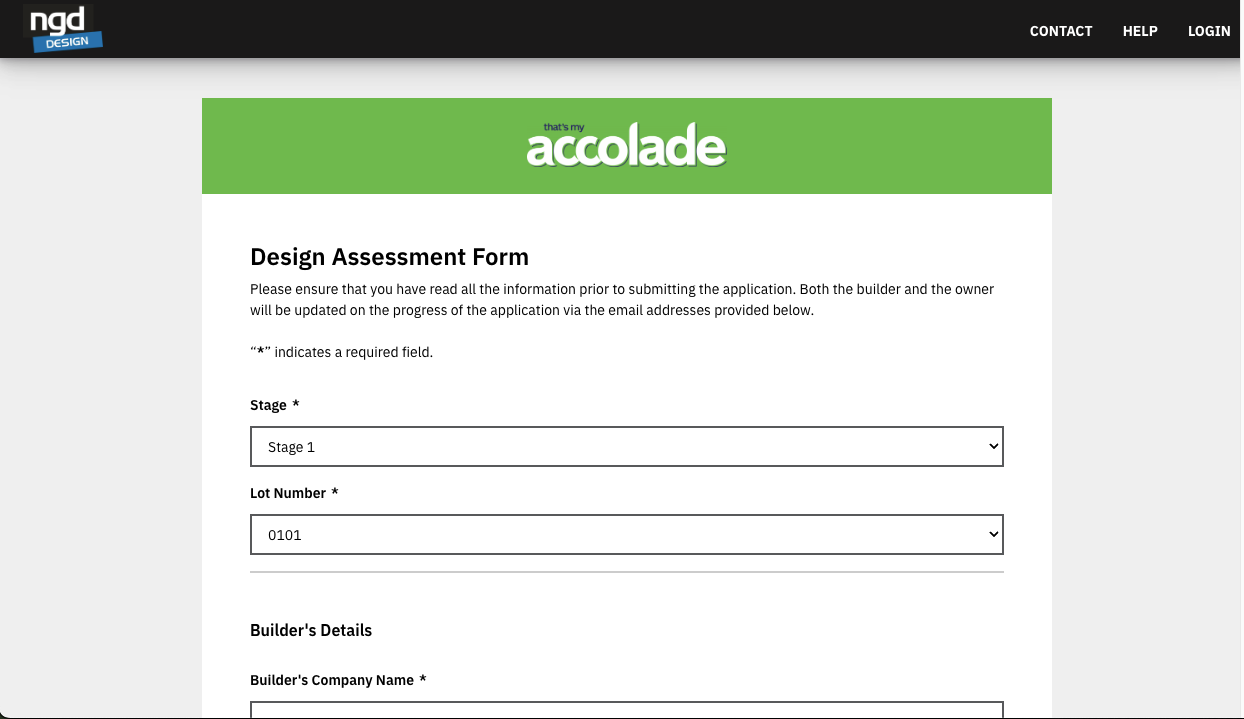
  • Review the form and requirements to ensure you have all the information to submit your application
  • Select the stage and lot for your application
  • If the lot is not visible in the application dropdown, you should check if you already have an application submitted or contact us. We will review the lot history, and make the lot available for another application. There may be a resubmission cost.
  • The email addresses used on the application for builder and owner are used for notifications and logging in to the system.
    • Do not use the builder’s email in both locations
    • We recommend that builders use a shared email address for all applications so that updates, notifications, and login links all go to a place all members of your team can access.
  • We recommend submitting all files as one combined PDF.
Application Review

Our assessors will review the application and either:

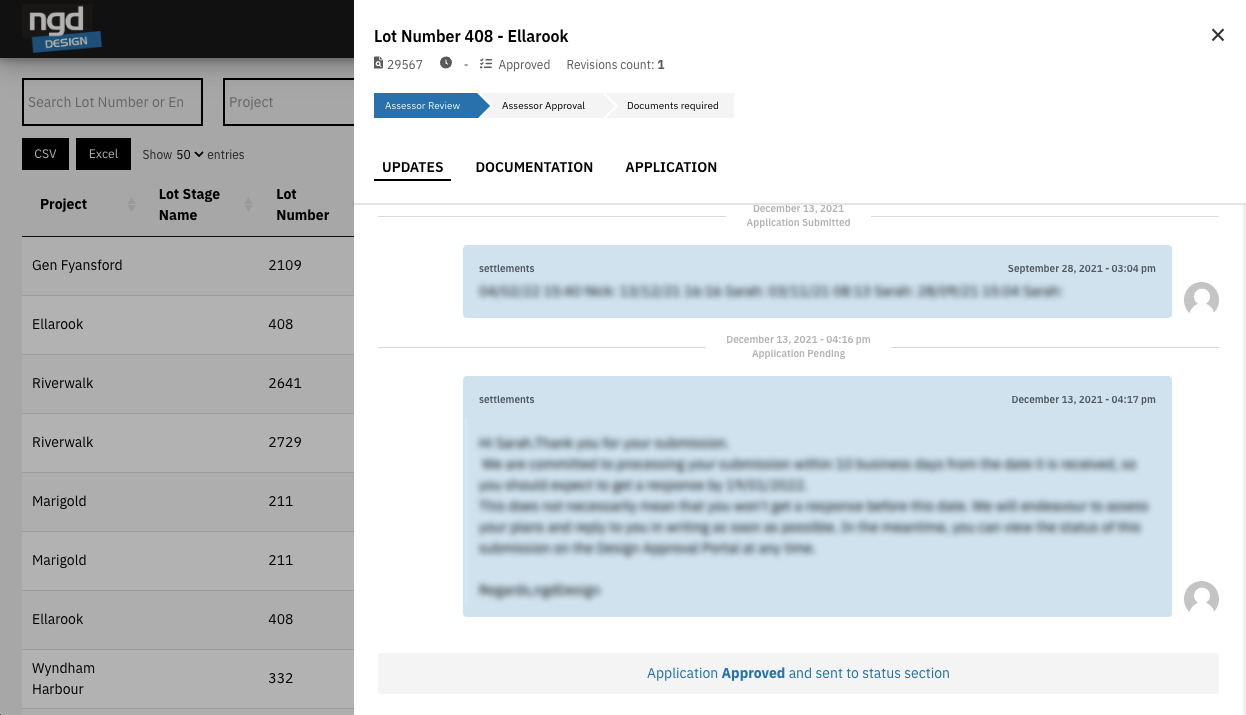
  • Approve – You will get an approval notification confirming you are ok to proceed with construction. Happy building!
  • Request Additional Files/Information – If additional files/information is required to progress your application, it will be assigned to you with details of what is needed.
  • Reject – If your application needs significant revisions or updates, for example, it may be on the wrong lot or project or be missing critical information, the assessor may reject your application.
Approved Applications

When approved, you will get a notification confirming you are ok to proceed with construction. Happy building!

Rejected Applications

If your application needs significant revisions or updates, it may be on the wrong lot or project or be missing important information. The assessor may reject your application.
  • In this case, you must submit a new application with the correct information.
  • There may be a cost involved for this additional submission.
Providing Additional Files/Information

If additional files/information is required to progress your application, then it will be assigned back to you with details of what is needed.
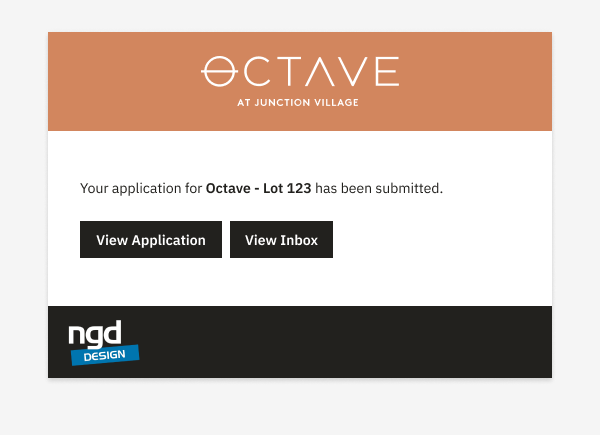
  • You will receive an email notification with the details required and links to provide the additional information.
  • You can upload additional files. Please make sure you do not delete any files already uploaded.
  • We will automatically put the uploaded date at the end of the file.
Logging in

We use a password-less login where both the email address used to submit the original application plus the email address of the property owner can log in with their email address and get a magic link to access their records.

If you are a builder and would like to access your applications under a single shared email address/login, please let us know and we can organise for your applications to be updated for you.
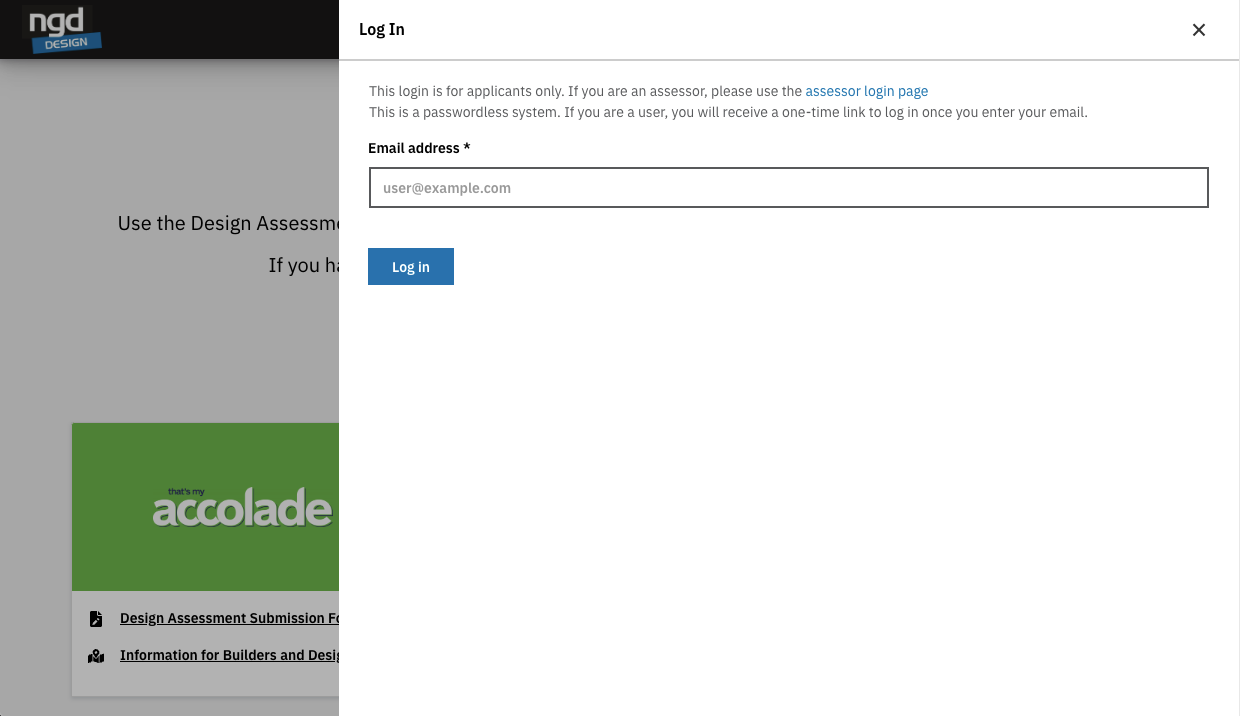
  • You can use the links in any notification email to log in to your application.
  • You can also use the login page in the top right
  • Enter the email address used on the application for the builder/owner, and the system will send a magic login link to that email address to log in
  • You need to click the link on the same device you want to log in
  • If you can’t find the email, check your junk
  • If the email address is not found or incorrect, then use the contact us page, and we can update it for you
Viewing Applications

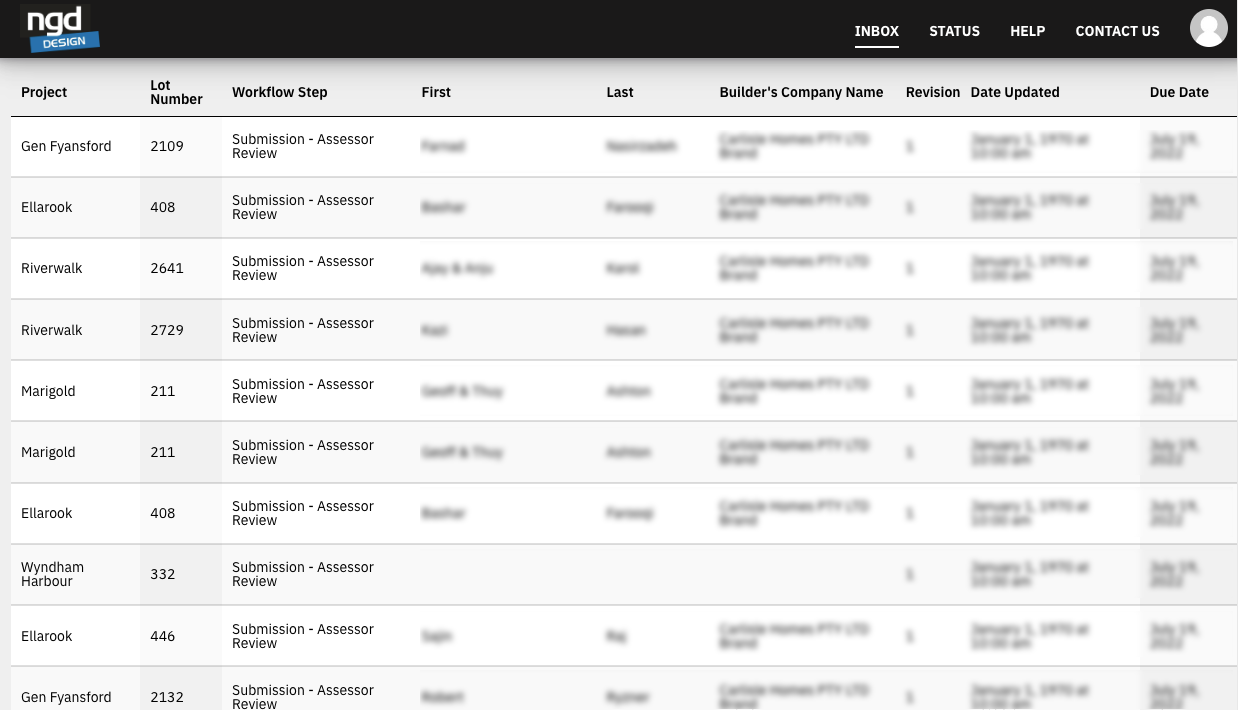
Once you have logged in, you can view existing applications.

  • The Inbox shows any applications requiring information/updates from you
  • The Status page lets you view and search all your previous applications
  • You can click on an application to view details and documents and also ask a question/request an update from your assessor.
Asking a Question

You can use the links provided on any notification email to ask questions about your application. They will be sent to your assessor and tracked on your application.

  • If the email link has expired, you can use the login function
  • Do not reply to the email notifications or email an assessor directly, as all communications need to go through the system.
Lot not visible in the lot dropdown

If the lot is not visible in the application dropdown, you should check if you already have an application submitted or contact us. We will review the lot history, and make the lot available for another application. There may be a resubmission cost.

Other help/issues

If you have other issues/require assistance, you can contact us using the contact form in the portal.